Best Job Application Tracker Tools
Compare job application tracker tools, including spreadsheets, Notion templates, and application extensions, to find a setup that fits your search.

A job search can get hard to track once applications, replies, and follow-ups pile up. A job application tracker gives each opportunity one clear record, so you can see what needs attention and choose the right next step.
These five options range from a ready-made tracker to a customizable workspace and application extensions. Pick the one that fits how you search, not the one that promises the most automation.
Table of Contents
- Job Application Tracker by Kickresume
- Job Application Tracker Spreadsheet by DartAssist
- Notion
- Simplify
- LoopCV
- Quick comparison: which job application tracker fits your workflow?
- A quick checklist for choosing and using your tracker
- FAQ
- Conclusion
1. Job Application Tracker by Kickresume
Job Application Tracker by Kickresume is a dedicated tool for keeping job applications in one place. It suits job seekers who already use Kickresume for resumes or cover letters and want fewer separate tools to manage.
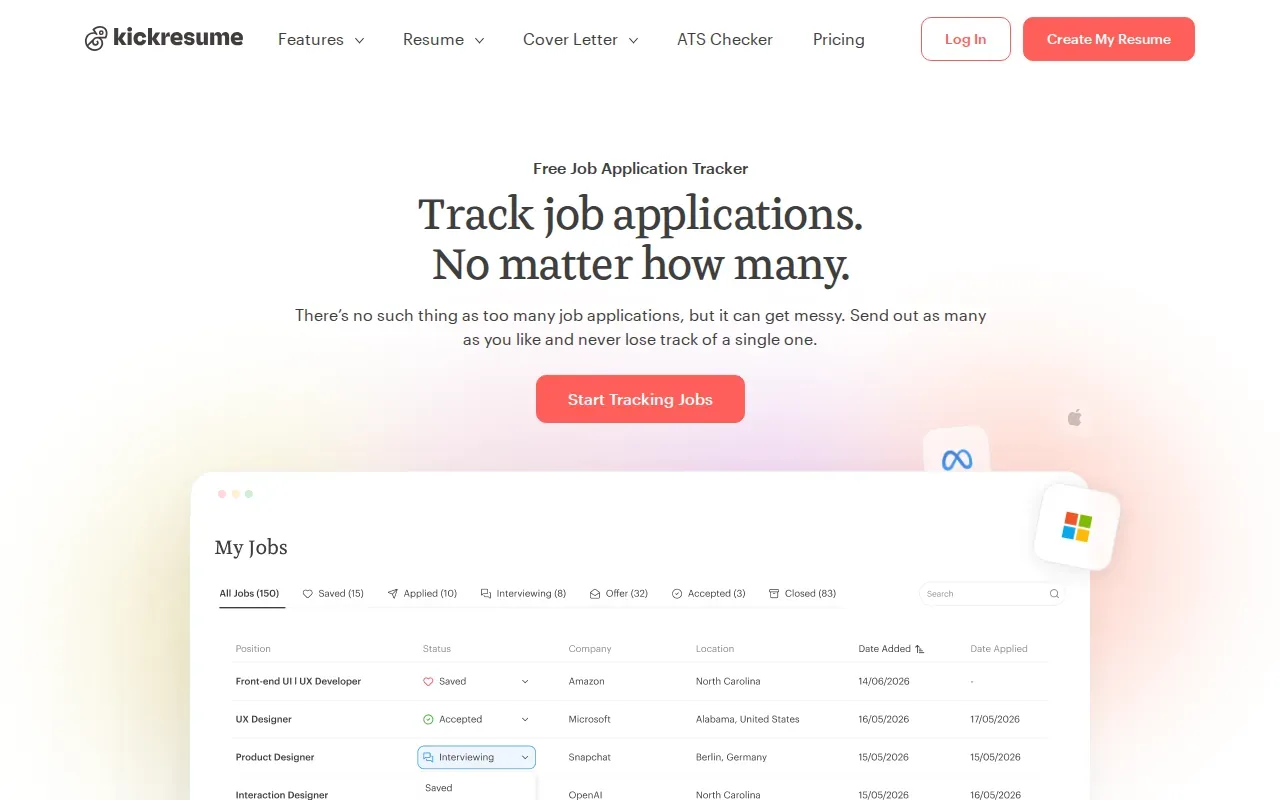
Kickresume says its tracker can hold key details such as the company, role, application date, status, job link, contact, and follow-up date. It also connects the tracker with its resume and cover letter tools, so a job seeker can keep application documents alongside the search record.
That setup can help when you need to recall which resume version went with a particular role. It also makes it easier to review the status list and spot applications that may need a follow-up. The trade-off is that it makes most sense if you want to work within Kickresume’s broader set of job-search tools.
If you mainly need to record applications and next steps, a spreadsheet may be enough. For help with the writing side of an application, see these AI job application tools and check which tasks they actually handle.
2. Job Application Tracker Spreadsheet by DartAssist
Job Application Tracker Spreadsheet by DartAssist is a Google Sheets-based tracker for people who prefer rows and columns. It suits job seekers who want a ready-to-copy spreadsheet with follow-up tracking and a view of how applications move through stages.
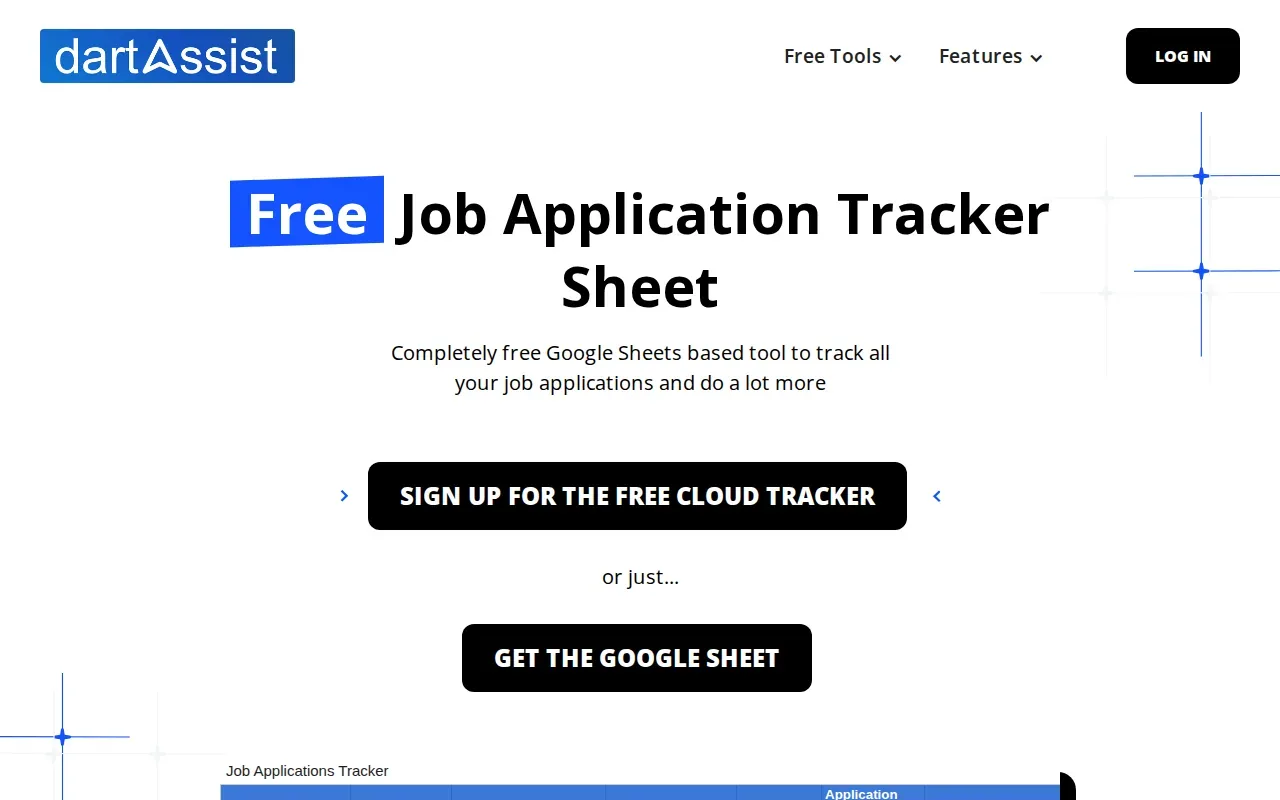
The spreadsheet can show application flow with a Sankey diagram and track measures such as applications submitted per week, interview callback rates, and interview success rates. It also has a follow-up schedule. The Followups sheet displays active applications due for a check-in based on that schedule.
To start, make your own copy of the spreadsheet. The sheet records the date when an entry first reaches Applied. You can change the follow-up schedule, but renaming default statuses may break some automations.
A spreadsheet can also be shaped around your own search. Use one row per role and keep fields consistent: company, job title, date applied, status, follow-up date, contact, link, and notes. That gives you a useful record without making the tracker a project of its own.
3. Notion
Notion is a flexible workspace that can hold a job-search tracker alongside other notes. It suits people who want to adapt a template to their process instead of using a fixed spreadsheet layout.
A tracker can include fields for company, role, application date, current stage, follow-up date, and notes from a recruiter or interview. Keep the status names plain and consistent, such as Saved, Applied, Interviewing, Offer, and Closed.
That structure helps when you want one place to keep context, not only a count of applications. For example, a note can capture what you asked a hiring manager or which questions to prepare before an interview. But the setup still depends on you keeping records current. A blank or stale workspace won’t remind you what needs attention.
Start with only the fields you expect to update. Add a dashboard or extra views later if you use the basic list often enough to know what’s missing. A journal or weekly goal note can be useful too, as long as it doesn’t distract from the next action on an open application.
4. Simplify
Simplify is an application extension for people who want faster form filling while staying involved in the submission. It suits job seekers who apply through online forms and want to review the information before sending.
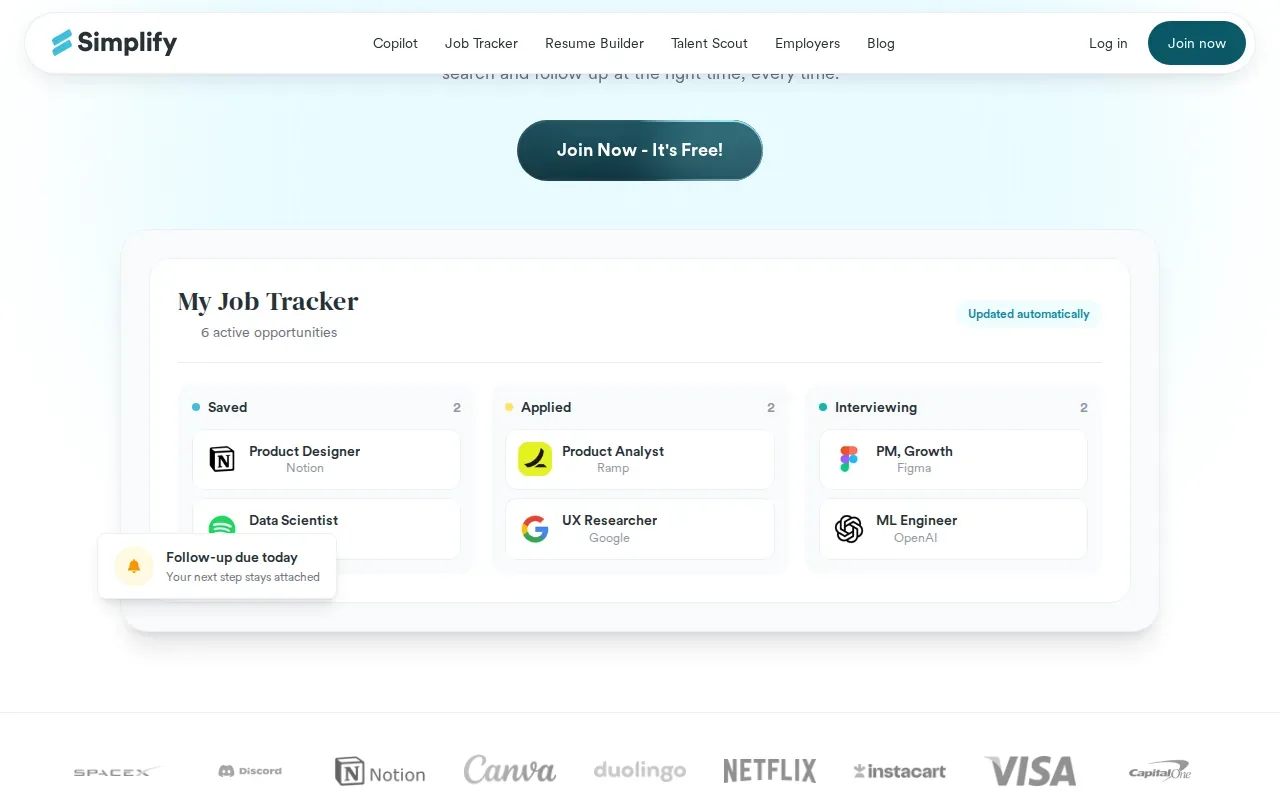
Simplify describes its approach as “safe automation,” rather than a fire-and-forget auto-apply bot. Its stated features include intelligent autofill and resume targeting. Its free tier includes unlimited autofill with no payment.
Autofill can cut repeated typing, but it doesn’t replace a tracker. Record the role, company, date, and status somewhere you can check later. Then review every filled field before submitting, especially when a form asks for work history or screening answers that vary by role.
Apply with AI is another option when your workflow includes LinkedIn or employer sites and you want help drafting tailored application text. For readers weighing LinkedIn’s application flow, this look at LinkedIn Easy Apply can help clarify where an extension fits.
5. LoopCV
LoopCV is a job-search platform that matches openings to a CV and can apply for users daily. It may suit job seekers who want application automation, but they should check the controls and scope before relying on it.
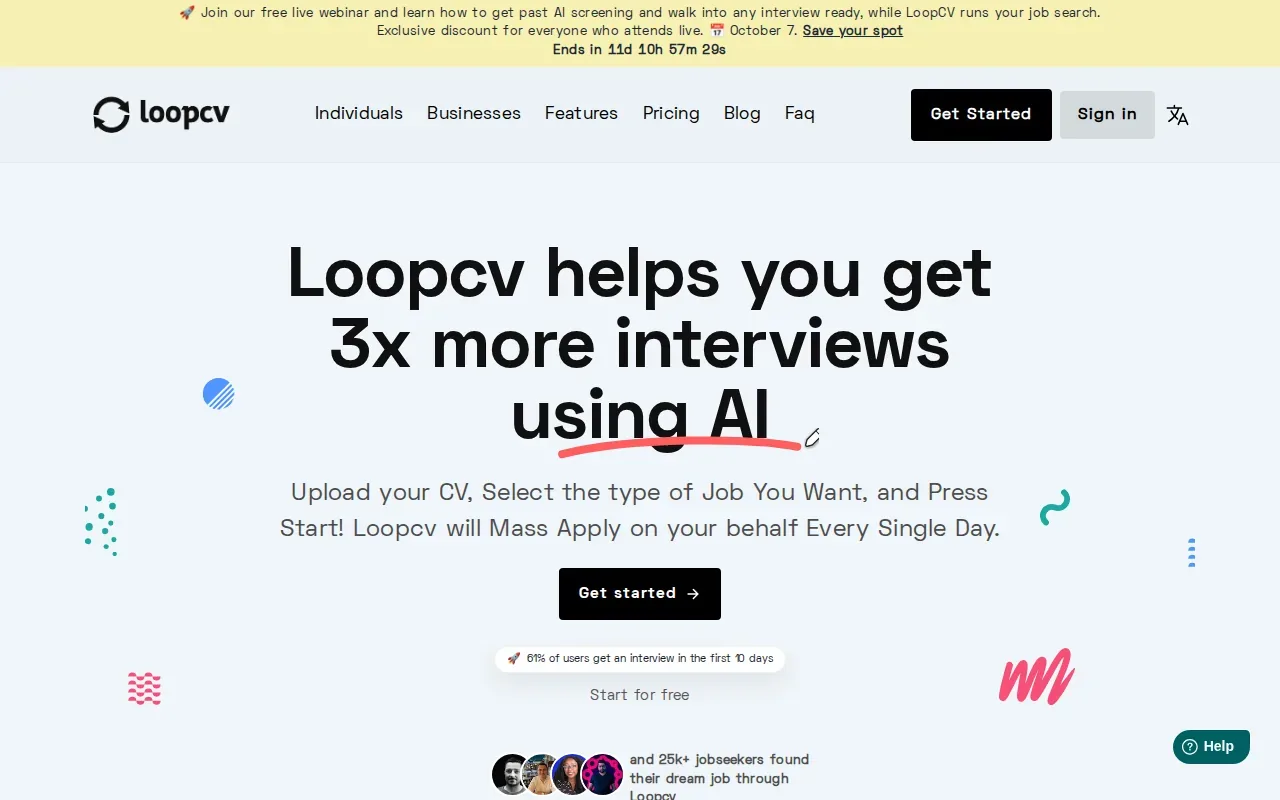
LoopCV says it scans over 30 job boards, including LinkedIn, Indeed, and Glassdoor. Its pricing includes a free-forever tier with 10 applications a month and no card required, as well as a Done For You option.
Automation changes how much review happens before an application goes out. Think about the role fit first, then inspect what the system would send. More applications don’t help if the roles don’t match your experience or the details need correction.
For freelancers splitting time between Upwork proposals and LinkedIn applications, Apply with AI addresses a different workflow. It helps score and filter opportunities, then drafts or fills application text for the user to review. On Upwork, the user presses Send or Submit; it doesn’t automatically send proposals or messages.
Quick comparison: which job application tracker fits your workflow?
The right job application tracker depends on whether you need a record, a dashboard, or help completing forms. Use this table to narrow the choice by workflow rather than by feature count.
| Option | Best fit | Useful distinction | Check before choosing |
|---|---|---|---|
| Job Application Tracker by Kickresume | People using Kickresume tools | Tracker sits with resume and cover letter tools | Whether you want that wider workspace |
| Job Application Tracker Spreadsheet by DartAssist | Spreadsheet users | Follow-up schedule and job-search metrics | Script permissions and status settings |
| Notion | People who want a customizable workspace | Template-based setup | How much upkeep your custom layout needs |
| Simplify | People seeking reviewed autofill | Unlimited autofill on its free tier | Review each field before submission |
| LoopCV | People considering application automation | Matches roles to a CV across job boards | Plan limits and submission controls |
Apply with AI is not a standalone tracker in this shortlist. It can support the application workflow when you need to score opportunities or draft tailored content, while you keep the final review and send step under your control. See the LinkedIn job application assistant details if that is part of your search.
A quick checklist for choosing and using your tracker
Choose the lightest setup that you’ll keep up to date. Your tracker should answer three questions at a glance: What did I apply for? What stage is it in? What should I do next?
- Record the basics: company, role, job link, date applied, and current status.
- Keep follow-up details: note a contact or follow-up date when you have one.
- Use fixed status labels: don’t switch between terms like Declined and Rejected for the same outcome.
- Review patterns: compare where you found roles and which resume version you used, if you track those details.
- Set a simple weekly check: update replies and interviews, then pick the next action for open roles.
A dashboard can help once you have enough entries to spot a pattern. Track counts by stage or applications per week, but don’t treat a chart as a verdict on your job-search approach. If few applications lead to interviews, inspect job fit and the materials you sent before increasing volume.
Pro Tip: Add a follow-up date only when you have a reason to check in, then review due dates during your weekly tracker update.For a freelancer, that same review can include whether a project matches your skills before drafting a proposal. Apply with AI supports that review-first workflow across Upwork and LinkedIn, but you still decide what to send.
Key Takeaway: Keep the tracker focused on fit, status, and the next useful action, not on application volume alone.FAQ
What should a job application tracker include?
A job application tracker should include the company, role, application date, current status, and job link. Add a contact name, follow-up date, and notes when you have them. These details help you find the original posting and recall what happened, without turning every entry into a long report.
Is a spreadsheet good enough to track job applications?
Yes, a spreadsheet is enough for many job seekers. It can hold each role, its status, and the next follow-up date. A ready-made sheet may also include charts or reminders. Choose a dedicated app only if you’ll use its added features often enough to justify another place to maintain.
How do I track follow-ups for job applications?
Track follow-ups by adding a date and a short note to each application that needs one. Check that list on a set day each week. If an employer gave you a timeline, use that as your guide. Avoid sending repeated messages just because a tracker marks a date as due.
Can an application extension replace a job application tracker?
An application extension can help fill forms, but it may not give you the record you need after submission. Keep a separate tracker for the company, role, date, status, and next step. Review any autofilled details before sending, then update the tracker so your search history stays accurate.
Conclusion
If you want a simple, adaptable record, start with a spreadsheet or Notion template and add only the fields you’ll maintain. If you also want help preparing applications across LinkedIn or employer sites, review how Apply with AI fits your workflow, then test it on one suitable opportunity.