Workday Job Application Tips: How to Get Through Employer Careers Sites Without Retyping Everything
Practical Workday job application tips: keep one master answer sheet, check the parsed resume, handle search-box pickers, save between steps and keep a record of every application.
Publisher disclosure: Apply with AI makes the extension discussed on this site. Product mentions and comparisons reflect that commercial interest.

Many large employers run their careers sites on Workday. You click Apply on a job, land on a page with the company's logo, and then go through a form of five to seven steps that looks almost the same as the last one you filled in, yet still asks you to create a new account and retype your work history.
The form itself isn't hard. Most of the trouble comes from small details: a phone code picker that won't accept your typing, a resume parser that mixes up your job titles, or a Save button that seems to forget a field. This guide covers the habits that make Workday applications faster and cleaner, and the checks to run before you press Submit.
Know the usual Workday flow before you start
Each employer configures its own Workday site, so the steps and questions vary. Most still follow a similar order, and if you know it, you can have your material ready before the first screen loads.
- Sign in or create an account. Accounts usually belong to each employer's site, so a login you made for one company often won't work at another.
- Autofill with Resume, Apply Manually or Use My Last Application. The upload option parses your resume into the form.
- My Information: name, address, email, phone, and how you heard about the job.
- My Experience: work history, education, skills, languages, resume upload and links.
- Application Questions: work authorization, sponsorship, notice period, salary expectations, relocation and role-specific screening questions.
- Voluntary Disclosures and Self Identify: optional or legally required demographic questions, depending on the country.
- Review: a summary of everything before Submit.
Tip Use a password manager and save each employer's Workday login under the company name. You'll need it later to check status, withdraw, or apply for a second role at the same employer.
Keep one master answer sheet
Most of the time you lose on Workday goes to typing the same facts over and over. Write them down once in a plain document and copy from it. You'll be faster, and your answers will stay consistent across employers, which matters when a recruiter compares your application with your LinkedIn profile.
- Full legal name and preferred name, written exactly the same way every time.
- Phone number split into two parts: country (for example Sweden, +46) and the local number without the code. Workday usually asks for these in separate fields.
- Email address you check daily. Use the same one for every account so status emails don't get scattered.
- Address, city, postal code and country, in the format your country uses.
- Work authorization and sponsorship answers for each country you apply in, worded as plain yes or no statements.
- Notice period, earliest start date, and a salary figure or range for each market you target, including the currency.
- Work history with exact start and end months, titles as they appeared on your contract, and two or three short bullet points per role.
- Education with institution, degree, field and dates; languages with proficiency level; LinkedIn and portfolio URLs.
Example
Phone country: Sweden (+46) Phone number: 701234567 Work authorization (EU): Yes, EU citizen, no sponsorship needed Work authorization (US): No, would require sponsorship Notice period: 1 month Salary (Stockholm, SEK): 52,000–56,000 per month How did you hear about us: LinkedIn
Check the parsed resume field by field
Autofill with Resume saves typing, but the parser often guesses wrong. Treat what it fills in as a rough draft and check every field.
Common problems: two jobs at the same company merged into one entry, bullet points pasted into the job title, a missing or swapped start month, a degree landing in the wrong field, and skills split into strange fragments. Recruiters often look at these structured fields rather than your attached file, so mistakes here count.
- Upload a simple, single-column resume in PDF or DOCX. Tables, text boxes and two-column layouts tend to parse badly.
- Open each work experience entry and compare title, company, location and dates against your master sheet.
- Delete duplicate or empty entries the parser created.
- Shorten descriptions to a few clear lines. Pasted text often loses its bullets and line breaks.
- Check the Skills field last. Remove fragments and add the skills named in the job post that you genuinely have.
Tip If an employer offers Use My Last Application, check it anyway. It copies whatever you saved last time, including mistakes and an old salary figure.

Handle search-box pickers properly
Workday uses search-style pickers for fields such as Country Phone Code, Country, State, Degree and 'How did you hear about us?'. They look like text boxes, but typing alone doesn't set a value. You have to pick an item from the list.
The value counts once it shows up as a selected entry, usually a small chip or pill such as 'Sweden (+46)' or 'LinkedIn', and not just as text you typed.
- Click the field and type a few letters, for example 'Swed' or 'Link'.
- Press Enter or wait for the list, then click the exact option. Some lists have nested categories, such as Job Board, then LinkedIn.
- Confirm the field now shows the selected entry. If you only see your typed text, the field is still empty.
- Put the local phone number in the Phone Number box only. Don't repeat the country code there if a separate code picker exists.
- If a picker already shows the right entry, leave it alone. Opening it again can clear the selection.
Tip If you can't find your source in 'How did you hear about us?', choose the closest honest option, such as Company Website or Job Board, rather than a random one.
Save before moving between steps
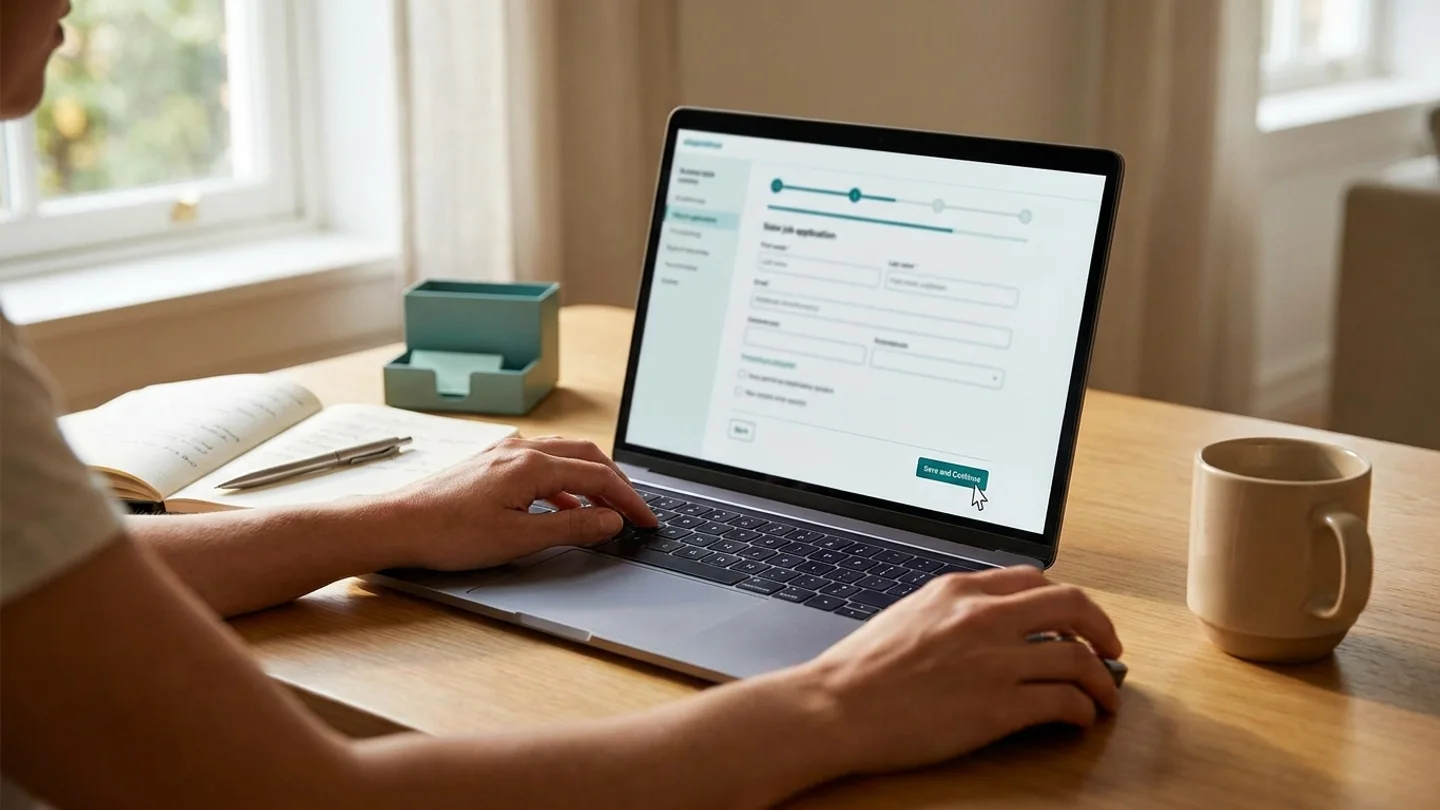
Workday checks many fields when you leave them, and it saves them when you press Save and Continue. If you press the button while your cursor is still in a field, that value may not register, and the page can come back saying a required field is empty.
Before pressing a button, click outside the last field you edited or press Tab. Then press Save and Continue and check that the page actually moved on. If it shows errors, go through the error list at the top of the page instead of retyping everything.
- Don't use the browser's back button inside the form. Use the form's own Back button or the step list.
- Use Save for Later if you need to collect a document. Unsubmitted applications stay in your Workday account on that site.
- Pick dates through the date fields in the format the site expects, often MM/YYYY. Typed dates in another format can be rejected without a clear message.
- Re-upload your resume if you change it partway through. Workday keeps the file you uploaded first.
Answer screening and disclosure questions carefully
Application Questions can disqualify you automatically. A wrong answer about work authorization or willingness to relocate may filter you out before a person reads anything. Read each question in full. Some are worded in reverse, for example 'Will you now or in the future require sponsorship?', where the answer that helps you is No.
Salary questions often accept only numbers. Enter a figure that matches the role's location and currency, taken from your master sheet. Voluntary disclosure questions are usually optional, and 'I do not wish to answer' is a valid choice where it's offered.
Tip On the Review page, read the screening answers one last time. Yes/No dropdowns are the easiest place for a misclick to go unnoticed.
Keep a record of every Workday application
Because every employer has its own Workday account, your application history is spread across dozens of logins. Keep your own record as you apply: company, role, link to the job, the date, which resume version you used, the salary figure you gave and the login email.
That record helps when a recruiter calls three weeks later and asks what salary you put down, and it stops you from applying twice for the same role. Our guides on tracking job applications and choosing a tracker show simple setups that work.
Where Apply with AI fits in
The Apply with AI LinkedIn agent can follow a job onto the employer's own careers site when the job doesn't use Easy Apply, and many of those sites run on Workday. It fills the form from answers you save once (phone, city, work authorization, notice period, salary and the rest), and it shows each external application in its history with a link to the application page.
For Workday specifically, the agent reads an entry Workday has already accepted in a search box, such as 'Sweden (+46)' under Country Phone Code, as that field's value, so it doesn't pick it again. It puts the phone number in the Phone Number box only. It also leaves each field before pressing a button, so values register before Save. It keeps notes on each careers site and hiring platform about what worked and what failed last time. You still check the results, and you can turn off auto-submit to press Submit yourself.
Related guides
Frequently asked questions
Why do I need a new Workday account for every company?
Each employer runs its own Workday site, and accounts usually belong to that site. A password manager and the same email address for every account make this easier to manage.
Should I use Autofill with Resume or Apply Manually?
Autofill with Resume is usually faster, as long as you check every field it fills in. If your resume has a complex layout and the results are badly mixed up, applying manually from your master answer sheet can take less time than fixing them.
Why does Workday say a field is empty when I filled it in?
Usually either a search-box picker got typed text but no selected option, or the last field you edited didn't register before you pressed Save and Continue. Choose the option from the list, click outside the field, then save again.
Can I edit a Workday application after submitting it?
Usually not. Some employers let you withdraw and apply again, but that depends on how the site is set up. Check the Review page carefully before you submit.